Channels
WhatsApp Chat for Your Website: Links, Buttons and a Shared Inbox Compared
A wa.me link takes five minutes. A shared team inbox takes an afternoon. Here is what each level really gives you, and when the extra setup is worth it.
ReplyOnSite TeamPublished 10 min read
On this page
Plenty of customers would rather send a WhatsApp message than fill in a contact form or wait in a chat window. They already have the app open, their conversation history stays on their phone, and they can walk away and pick the thread up later. So "can we add WhatsApp to the website?" is one of the most common requests a small support team hears.
The trouble is that "adding WhatsApp" means very different things depending on who you ask. A plugin vendor means a green button. A developer means the WhatsApp Business Platform. This guide separates the options, shows how to set each one up, and is honest about what each one cannot do. We build ReplyOnSite, which connects WhatsApp to a shared inbox, so we will say clearly when we are describing our own product.
Why customers want to reach you on WhatsApp#
The simplest reason is reach. Meta CEO Mark Zuckerberg said on the company's first-quarter 2025 earnings call that more than 3 billion people use WhatsApp every month, as reported by TechCrunch (opens in a new tab). In many countries it is simply how people message each other, and increasingly how they message businesses.
A few practical advantages follow from that:
- Conversations survive the browser tab. A website chat often ends when the visitor closes the page. A WhatsApp thread stays on their phone, so they can reply hours later.
- No new account or app. The customer uses something they already trust.
- Photos and documents are natural. A picture of a damaged parcel or a screenshot of an error message is one tap away.
- Mobile visitors expect it. On a phone, jumping to a messaging app can feel easier than typing into a small chat panel.
None of this means WhatsApp should replace your website chat. Plenty of visitors, especially on desktop, prefer not to share a phone number with a business. The strongest setup gives people a choice and keeps all of those conversations in one place for your team.
The three levels of WhatsApp chat for a website#
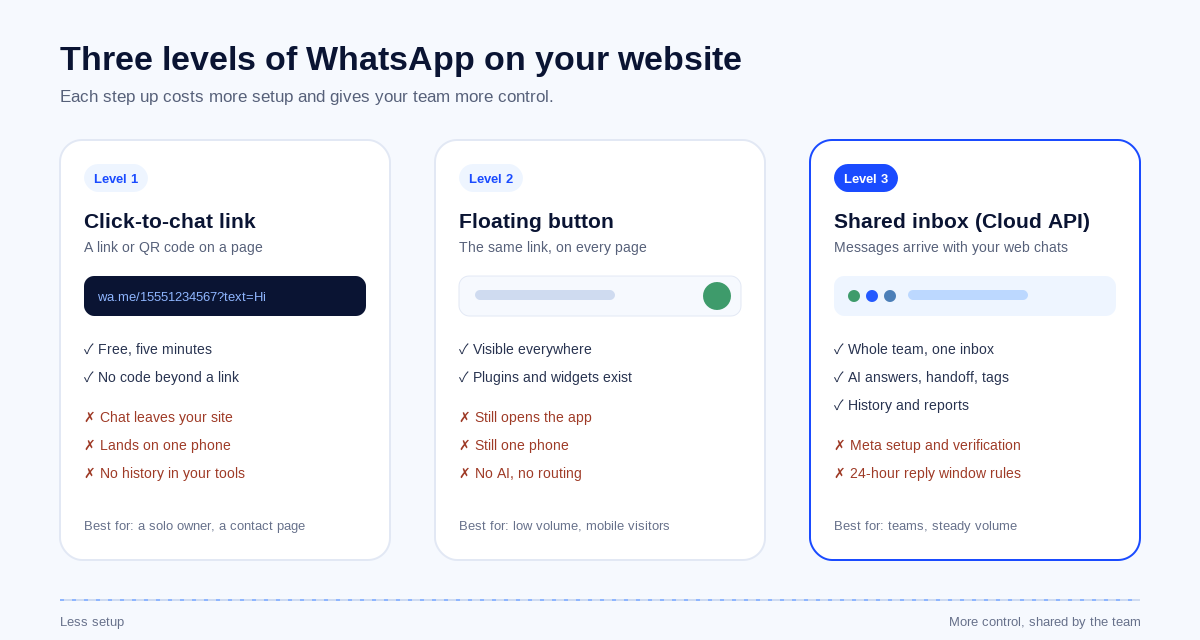
Every WhatsApp option you will find falls into one of three levels. Each step up costs more setup and gives your team more control.
Level 1: A click-to-chat link (or QR code)#
WhatsApp offers an official click-to-chat link. According to the WhatsApp Help Center (opens in a new tab), the format is https://wa.me/<number>, where the number is a full phone number in international format. You can add ?text= to pre-fill the first message.
How to create a wa.me link, step by step
- Write your number in international format. Start with the country code and drop the plus sign, spaces, brackets, dashes and any leading zero. A US number such as +1 (555) 123-4567 becomes
15551234567. - Build the link.
https://wa.me/15551234567opens a chat with that number. - Optionally pre-fill a message. Add
?text=followed by URL-encoded text, where spaces become%20. Pre-filled text helps you recognize where the customer came from, for example "Hi, I have a question about my order". - Test it on a phone and a desktop. On a phone it opens the app. On a desktop it offers WhatsApp Web or the desktop app.
- Place it where questions happen. Your contact page, product pages, order confirmation emails and printed packaging (as a QR code that encodes the same link).
contact.html
<!-- A plain click-to-chat link -->
<a href="https://wa.me/15551234567?text=Hi%2C%20I%20have%20a%20question%20about%20my%20order">
  Message us on WhatsApp
</a>
Tips that make a wa.me link more useful
- Use different pre-filled text per page. "Hi, I'm asking about the oak desk" on a product page and "Hi, I need help with an order" in a shipping email tell you the context before you read a word.
- Set expectations next to the link. A short line such as "We reply on WhatsApp between 9 a.m. and 5 p.m. Eastern" prevents the frustration of an unanswered message at midnight.
- Use a WhatsApp Business account on that phone. The free WhatsApp Business app adds a business profile, quick replies and an away message, which helps a lot at this level.
- Track clicks. If your analytics tool records outbound link clicks, you can at least see how many visitors tried WhatsApp, even though the conversation itself happens elsewhere.
Click-to-chat link: pros and cons
Pros
- Free and official, no third-party tool required
- Works on any website builder that allows a link
- Takes about five minutes to set up
Cons
- The visitor leaves your site to start the conversation
- Messages land on one phone or one WhatsApp Business app
- No assignment, history, reports or AI in your support tools
- Your phone number is public in the page source
Level 2: A floating WhatsApp button or widget#
A floating button is the same link, presented better. Plugins and widget builders place a round button in the corner of every page, sometimes with a small popup that shows a greeting, your opening hours, or several numbers for different departments. Clicking it opens WhatsApp with your number, exactly like Level 1.
This is a sensible upgrade if most of your visitors are on mobile and your volume is low enough for one person with one phone. Be clear about what you are buying, though: a nicer way to open the app, not a way to manage the conversations that follow.
Floating button: pros and cons
Pros
- Visible on every page, so more people notice it
- Many free or low-cost plugins for WordPress and Shopify
- Can show hours, a greeting or multiple contacts
Cons
- Still opens the WhatsApp app, so the chat leaves your site
- Still one phone or one Business app per number
- Competes for space with your website chat button
- No AI answers, routing or shared history
Level 3: WhatsApp connected to a shared inbox#
The third level uses the WhatsApp Business Platform (the Cloud API) instead of a phone app. Your business number is registered to a Meta business app, and incoming messages are delivered to your support software by webhook. Replies go back the same way. The customer still uses WhatsApp; your team answers from a browser.
That changes what is possible:
- Several people can answer one number. Chats can be assigned, transferred and picked up by whoever is free.
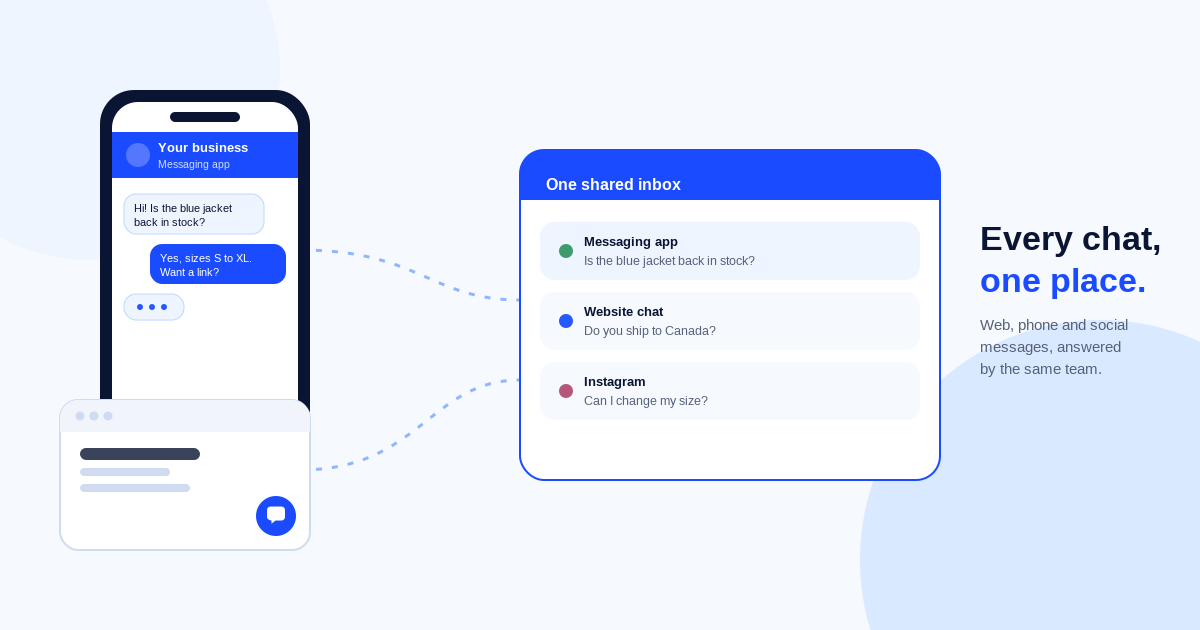
- WhatsApp sits next to your other channels. Website chat, Messenger, Instagram and Telegram can all arrive in the same list.
- Automation applies. An AI assistant can answer common questions from your help content, and hand off to a person when it cannot.
- History stays with the business. Conversations are linked to a contact record, searchable and included in reports, instead of living on an employee's phone.
What you need before you start
- A Meta business presence. The WhatsApp Business Platform is managed through Meta's business and developer tools, so someone on your team needs admin access there.
- A phone number for the platform. Decide which number customers will message. Meta's setup flow walks you through adding and verifying it.
- A support tool that speaks the Cloud API. Your inbox receives the messages and sends the replies, so it has to support WhatsApp natively.
- An owner for the connection. Tokens and webhooks rarely need attention once they work, but someone should know where they live if Meta asks you to re-verify.
The cost is setup. You need a Meta business and developer app, a phone number registered to the WhatsApp Business Platform, and a support tool that supports it. Meta charges for some message types; its rules have changed over time, so check Meta's current WhatsApp pricing documentation before you budget.
Shared inbox via the Cloud API: pros and cons
Pros
- The whole team answers from one inbox, with assignment and notes
- AI answers and chatbot flows can run on WhatsApp chats
- Contact history, tags and reports in one place
- Your number is not exposed as a personal phone
Cons
- Meta app setup, number registration and tokens to manage
- The 24-hour customer service window limits late replies
- Some message types are billed by Meta
- Number registration and permissions live in Meta's developer tools
Side-by-side comparison#
Here is the same comparison in one table. Click a column header to sort.
| Option | Software cost | Team can share it | AI answers | History in your tools | |
|---|---|---|---|---|---|
| Click-to-chat link | Minutes | Free | No, one phone or Business app | No | No |
| Floating button | Under an hour | Free to low-cost plugins | No, one phone or Business app | No | No |
| Cloud API + shared inbox | An afternoon | Support tool plan, plus Meta message charges where they apply | Yes | Yes, if your tool supports it | Yes |
The 24-hour customer service window, explained#
If you connect WhatsApp through the Business Platform, one rule shapes everything: the customer service window. Meta's developer documentation (opens in a new tab) describes it like this: when a WhatsApp user messages you, a 24-hour timer starts, and it resets each time they write again. Inside that window you can send free-form messages. Outside it, you can only start the conversation again with an approved template message.
In practice this means:
- Answer the same day. A question that arrives Friday evening and waits until Monday morning has left the window.
- Ask for what you need early. If you will need an order number or a photo, ask in your first reply, while the window is open.
- Use automation for the gap. An AI assistant that answers routine questions immediately keeps customers from waiting until the window closes.
- Offer a fallback. For issues that take days, collect an email address or create a ticket so you can follow up outside WhatsApp.
How ReplyOnSite connects WhatsApp#
Here is how the Level 3 setup works in ReplyOnSite specifically. Channels are connected per website under Settings → Channels, and only workspace owners and admins can connect them.
- Prepare a Meta app with the WhatsApp product. In Meta's developer dashboard, note the phone number ID and WhatsApp Business Account ID, and generate a permanent access token with the WhatsApp messaging and management permissions.
- Enter the details in ReplyOnSite. Add the phone number ID, account ID, token, app secret and a verify token you choose. ReplyOnSite checks the credentials with Meta before saving them, stores secrets encrypted, and never shows them again.
- Point Meta's webhook at ReplyOnSite. Each connected channel gets its own webhook address. Every incoming call is checked against Meta's signature before it is read, and repeated deliveries are ignored.
- Send a test message from your own phone and reply from the inbox.
Once connected, a WhatsApp chat behaves like any other conversation:
- It carries a channel badge, and the inbox can be filtered by channel.
- It goes through the same routing, moderation and notifications as website chats.
- Delivered and read receipts appear under your replies.
- The customer's WhatsApp number is stored on their contact record, so you can see past conversations.
- Private notes and internal system lines never leave ReplyOnSite, so your team can discuss a chat safely.
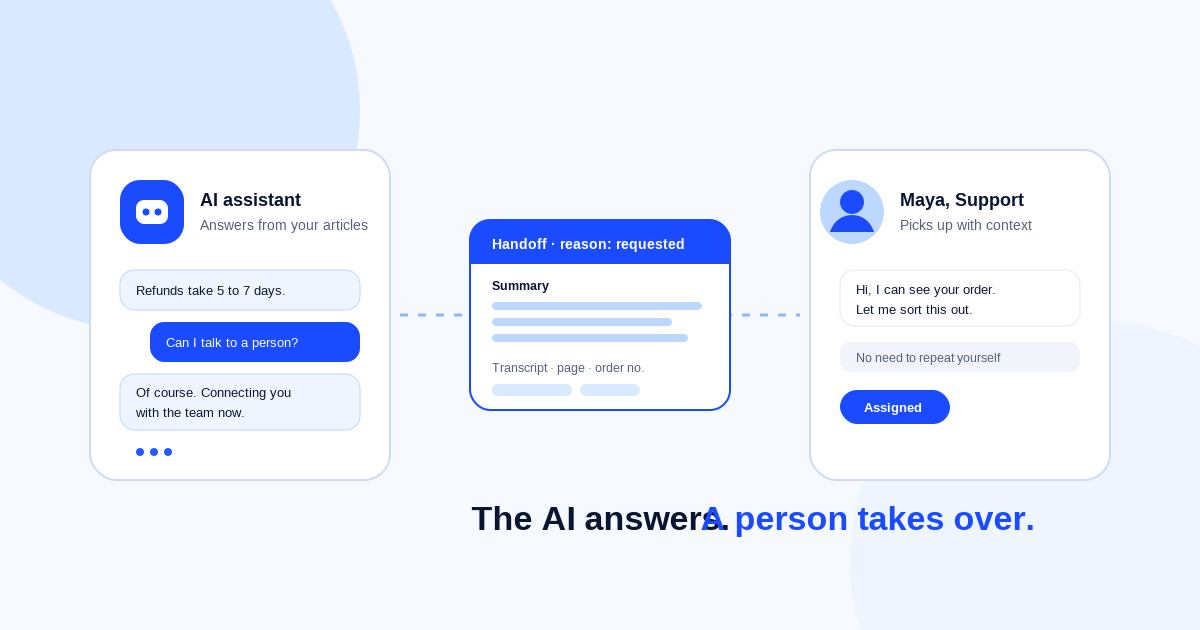
The AI assistant and chatbot flows run on WhatsApp too. Watch a typical conversation where the assistant answers from the knowledge base and then hands over to a person:
- Visitor: Hi, can I return a lamp I bought last week?
- AI assistant: Yes. Unused items can be returned within 30 days for a full refund. (Source: Returns & refunds)
- Visitor: It arrived with a cracked base. I have a photo.
- AI assistant: I'm sorry about that. Damaged items need a person to review, so I'm connecting you now.
- System: Handed to Sam · transcript attached
- Sam (Support): Thanks for flagging it. Please send the photo here and your order number.
The return policy and timings above are an example. The assistant only uses what you put in your own knowledge base. Chatbot flow buttons, such as "Track my order" or "Talk to a person", appear as numbered options on WhatsApp, and the customer replies with the number or the option text.
You can also get alerts wherever your team already is. Slack and Telegram notifications can announce new chats, missed chats and other events, and with Telegram an agent can reply to a chat notice directly. The install guide covers the website widget, and our AI agent page explains how the assistant is grounded in your content.
Privacy and good practice#
WhatsApp conversations involve phone numbers, which deserve a little extra care:
- Say how you use the number. Your privacy policy should explain that WhatsApp messages and the sender's number are stored in your support tool.
- Do not use support chats for marketing unless the customer has clearly agreed. Meta has its own rules about business-initiated messages, too.
- Be ready for access and deletion requests. ReplyOnSite's privacy tools let an admin find a person by email, export what is held about them, or erase them across chats, messages and tickets.
- Protect the accounts that can read chats. Turn on two-factor sign-in for your team. ReplyOnSite supports authenticator-app codes and can require them for a whole workspace.
- Keep tokens out of shared documents. Treat your Meta access token and app secret like passwords.
Which level should you choose?#
A simple way to decide:
- Choose a link if you are a solo owner, answer from your own phone, and get a handful of messages a week. Put it on your contact page and order emails.
- Choose a floating button if most visitors are on mobile and one person can comfortably handle the volume, but you want WhatsApp visible on every page.
- Choose a shared inbox if more than one person answers customers, you also run website chat or social channels, you want AI to handle routine questions, or you need history and reports that do not depend on someone's phone.
Many businesses start at Level 1 and move up once the phone becomes a bottleneck. If that is where you are, read our guides on adding live chat to your website and handing off from a chatbot to a human. If you are comparing tools, our tawk.to alternatives roundup shows which products include messaging channels and on which plans.
Frequently asked questions
How do I add WhatsApp chat to my website for free?
The free way is a click-to-chat link. Build a link in the format https://wa.me/ followed by your full phone number in international format, with no plus sign, spaces or dashes, then add it to a button or text on your site. Clicking it opens a WhatsApp conversation with your number.
What is a wa.me link?
A wa.me link is WhatsApp's official click-to-chat link. It opens a chat with a phone number without the visitor saving it as a contact. You can add ?text= with URL-encoded words to pre-fill the first message, for example https://wa.me/15551234567?text=Hi.
Is a WhatsApp button the same as WhatsApp live chat?
No. A button or link only opens the WhatsApp app with your number, so the conversation happens on whichever phone or WhatsApp Business account owns that number. Live chat through the WhatsApp Cloud API brings those messages into a shared inbox where your whole team, and optionally an AI assistant, can answer them.
What is the WhatsApp 24-hour customer service window?
When a customer messages your business through the WhatsApp Business Platform, a 24-hour window opens and resets each time they write again. Inside it you can send free-form replies. Outside it, Meta requires an approved template message to start the conversation again.
Can several agents answer the same WhatsApp number?
Yes, if the number is connected through the WhatsApp Business Platform to a shared inbox. In ReplyOnSite, WhatsApp chats land in the same inbox as website chats, so they can be assigned, transferred, tagged and answered by any teammate with access to that site.
Can an AI chatbot answer WhatsApp messages?
Yes. In ReplyOnSite the AI assistant and chatbot flows run on WhatsApp chats as well as website chats. The assistant answers from your knowledge base and hands off to a person when it cannot. Flow buttons become numbered options, and the customer replies with a number or the option text.
Do I need a WhatsApp Business account to connect a website inbox?
To connect WhatsApp to a shared inbox you need the WhatsApp Business Platform (Cloud API) through a Meta business and developer app, with a phone number registered to it. A simple wa.me link works with any WhatsApp or WhatsApp Business account.
ReplyOnSite
Answer every visitor. Hand the hard ones to a person.
Live chat, an AI assistant grounded in your own content, and WhatsApp, Messenger, Instagram and Telegram in one inbox. The Free plan needs no card.
Keep reading
Guides
How to Add Live Chat to Your Website: A Step-by-Step Guide for 2026
One script tag, the exact place to paste it on every major platform, and the settings to get right before your first visitor says hello.
11 min read
AI support
Chatbot to Human Handoff: How to Build AI Customer Support That Knows When to Step Aside
The triggers, rules and context that turn an AI assistant from a wall between you and your customers into a fast first line with a person right behind it.
11 min read
Comparisons
tawk.to Alternatives in 2026: 5 Honest Options Compared (Free and Paid)
A short, fair comparison built from public pricing pages: what tawk.to does well, five alternatives, who each one fits, and how to switch without losing anything.
10 min read